Hello There!

Lorem ipsum dolor sit amet, consectetur adipiscing elit,

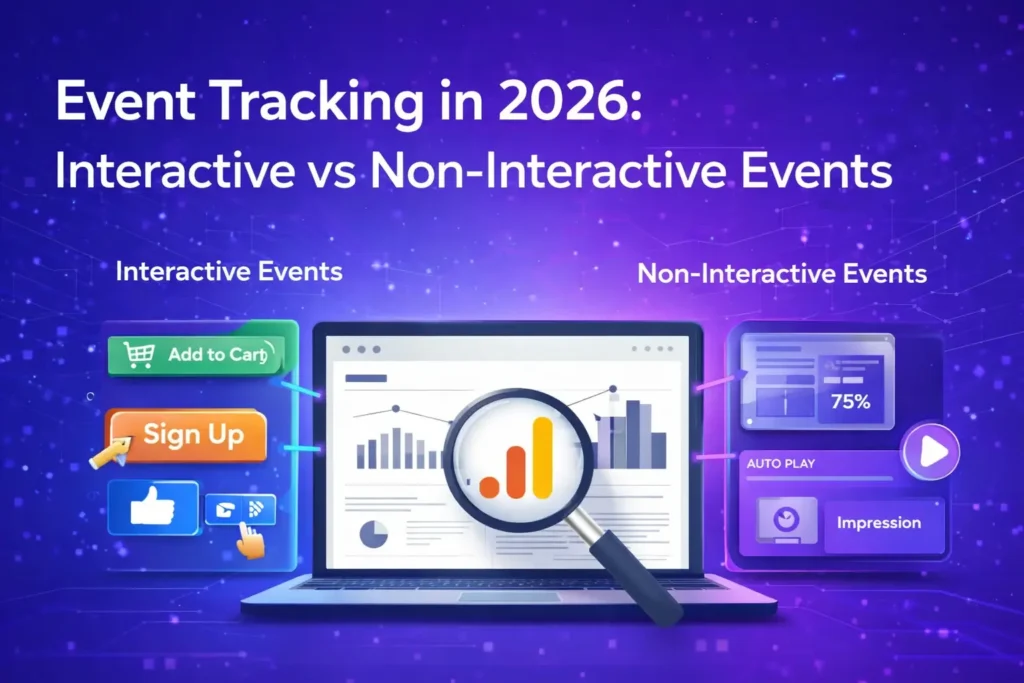
Event Tracking in 2026: Interactive vs Non-Interactive Events (Complete Guide)

Event Tracking in 2026 Interactive vs Non-Interactive Events - Tatvic
TL;DR

Event tracking is the foundation of modern analytics - capturing meaningful user actions beyond pageviews. In 2026, understanding the difference between interactive events (user-initiated actions such as clicks or form submissions) and non-interactive events (system or passive signals like scroll depth or auto-play impressions) is essential for accurate reporting, engagement measurement, AI optimization, and conversion growth. Interactive events indicate user intent and drive engagement metrics, while non-interactive events provide context without inflating engagement. This guide explains both, how they work in GA4, best practices for implementation (especially with Google Tag Manager), the impact on conversion rate optimization (CRO), and how privacy, AI, and future measurement landscapes make event tracking pivotal for data-driven growth.

What Is Event Tracking?

Event tracking is the practice of measuring specific user interactions that go beyond basic pageviews or screen views. These interactions such as button clicks, video engagement, form submissions, scroll behavior, or file downloads reveal how users actually engage with your website, app, or digital product.

In simple terms, event tracking shows what users do, not just where they land.

In Google Analytics 4 (GA4), event tracking is no longer an optional enhancement,  it is the foundation of the entire analytics model. GA4 is built on an event-first architecture where every meaningful interaction is captured as an event and enriched with parameters such as page context, user intent, device, and timing.

This shift enables businesses to:

  • Understand interactive and non-interactive events clearly

  • Measure real engagement instead of surface-level traffic

  • Attribute conversions more accurately across touchpoints

  • Feed high-quality behavioral data into AI-driven optimization systems

Whether it’s a user clicking a CTA (interactive event) or passively scrolling through content (non-interactive event), event tracking provides the granular visibility required to optimize experiences and revenue.

Why Event Tracking Is Critical in 2026

Event tracking has evolved from a technical implementation detail into a strategic growth capability. Several major shifts in the digital ecosystem have made it indispensable in 2026.

1. The Move to Event-First Analytics

Universal Analytics relied heavily on sessions and pageviews, often masking real user intent. GA4 fundamentally changed this approach by treating every interaction as an event.

This makes accurate event classification especially between interactive and non-interactive events essential. Poorly designed event tracking leads to inflated engagement metrics, misleading insights, and incorrect optimization decisions.

In 2026, businesses that win are those that track intent-driven actions, not just activity.

2. Fragmented, Cross-Platform User Journeys

Modern customer journeys are no longer linear.

Users move seamlessly across:

  • Websites and mobile apps

  • Paid ads and organic search

  • Social platforms and marketplaces

  • CRM touchpoints and offline interactions

Event-level tracking is the only way to stitch together these fragmented journeys. Pageviews alone cannot explain how users discover, evaluate, and convert across platforms.

Event tracking provides the behavioral granularity required to understand how touchpoints influence each other throughout the funnel.

3. Privacy-First Measurement Reality

With increasing privacy regulations, cookie deprecation, and consent-based tracking models, traditional identifiers have become unreliable.

In this environment, first-party event data has emerged as the most trustworthy signal for:

  • Analytics accuracy

  • Personalization engines

  • Conversion modeling

  • Attribution and media optimization

Well-implemented event tracking ensures businesses remain measurement-ready even as signal loss increases.

4. AI and Predictive Insights Depend on Events

AI-driven analytics, smart bidding, personalization engines, and predictive models all rely on clean, high-quality behavioral signals.

Events; especially well-defined interactive events are among the most valuable inputs for AI systems. They help models understand:

  • User intent

  • Engagement depth

  • Conversion likelihood

  • Drop-off patterns

Inaccurate or noisy event tracking leads to unreliable AI outputs. In 2026, AI is only as good as the events it learns from.

5. Conversion Rate Optimization (CRO Is Event-Driven)

Modern Conversion Rate Optimization no longer focuses only on final conversions. It relies heavily on micro-interactions captured through event tracking, such as:

  • CTA clicks

  • Form field engagement

  • Scroll behavior

  • Feature interactions

These events enable teams to validate experiments, identify friction points, personalize journeys, and optimize entire funnels not just landing pages.

Without a strong event tracking framework, CRO becomes guesswork.

implications for passing the hits as non-interactive

Interactive vs Non-Interactive Events: The Core Concept

At the heart of modern event tracking lies one of the most important and most misunderstood distinctions in digital analytics: Interactive events vs non-interactive events.

This distinction determines whether your analytics reflects true user intent or inflated engagement numbers. In 2026, when analytics powers AI systems, attribution models, and CRO decisions, getting this right is non-negotiable.

What Are Interactive Events?

Interactive events represent deliberate, user-initiated actions. They indicate that a user actively chose to engage, explore, or progress toward a goal.

In simple terms:

Interactive events answer the question: “Did the user intentionally do something?”

These events should contribute to engagement, conversion, and optimization metrics.

Common Examples of Interactive Events

  • Button clicks (e.g., “Sign Up”, “Buy Now”, “Request Demo”)

  • Form submissions and field interactions

  • Add-to-cart or remove-from-cart actions

  • Manual video play, pause, or seek actions

  • In-app gestures such as swipe, like, save, or share

  • Navigation to deeper content layers (accordion opens, tab switches)

  • Downloads initiated by the user

  • CTA interactions within emails or in-app messages

Each of these actions reflects intent, motivation, and decision-making  the signals that matter most for analytics, CRO, and AI-driven optimization.

What Are Non-Interactive Events?

Non-interactive events capture passive, automatic, or system-triggered signals. These events occur without a conscious decision from the user and should not be treated as engagement by default.

In other words:

Non-interactive events answer: “What happened around the user?” not “What did the user choose to do?”

They provide valuable context but should not inflate engagement or conversion metrics.

Common Examples of Non-Interactive Events

  • Scroll depth tracking (25%, 50%, 75%, 100%)

  • Auto-play video impressions

  • Time-on-page thresholds

  • Element visibility or impression tracking

  • Viewability measurements for banners or modules

  • Automatic animation or carousel triggers

  • Lazy-loaded content impressions

These events are extremely useful for UX analysis, content performance, and behavior mapping, but they do not necessarily indicate intent.

Why the Interactive vs Non-Interactive Distinction Matters

Failing to distinguish between interactive and non-interactive events is one of the biggest reasons analytics data becomes misleading.

In 2026, this distinction impacts nearly every growth function.

1. Accurate Engagement Measurement

Interactive events should contribute to engagement metrics because they reflect active participation.

Non-interactive events, if misclassified, can:

  • Inflate engagement rates

  • Distort session quality signals

  • Mislead stakeholders about content performance

Clean classification ensures engagement means intent, not motion.

2. Reliable Conversion and Attribution Signals

Modern attribution models and AI-driven media buying depend on clean behavioral signals.

When passive events are incorrectly treated as engagement:

  • Upper-funnel channels appear stronger than they are

  • Conversion paths become noisy

  • Budget allocation decisions suffer

Proper event classification improves attribution accuracy and ROI optimization.

3. Better Conversion Rate Optimization (CRO Decisions)

CRO thrives on intent-based insights, not passive exposure.

Interactive events reveal:

  • Where users hesitate

  • Which CTAs motivate action

  • How users move through funnels

Non-interactive events support context, but optimization decisions should be driven primarily by what users choose to do.

4. AI-Ready Analytics and Automation

In 2026, analytics is no longer just for reporting - it fuels:

  • Predictive models

  • Smart bidding

  • Personalization engines

  • AI agents optimizing journeys in real time

These systems must distinguish between:

  • Actions that matter

  • Signals that merely occur

Clear separation between interactive and non-interactive events ensures AI systems learn from the right behaviors.

As privacy constraints increase and user journeys become more complex, intent signals are more valuable than ever.

Interactive events represent intent. Non-interactive events provide context.

How Event Tracking Works in GA4

Google Analytics 4 (GA4) introduced a fundamentally different way of thinking about analytics. Unlike Universal Analytics, where events were optional enhancements, GA4 is built entirely on an event-based data model.

Understanding how event tracking works in GA4 is critical if you want accurate engagement metrics, reliable attribution, and actionable CRO insights in 2026.

GA4’s Event-Centric Design Explained

.In GA4, everything is an event.

This includes:

  • Page views
  • Scrolls
  • Clicks
  • Video interactions
  • Conversions
  • Custom user actions

Each event can carry parameters that provide context, such as page location, button text, product ID, or funnel stage.

What This Means Practically

  • Pageviews are no longer a separate hit type they are events
  • Engagement is calculated based on event behavior, not just visits
  • Poorly designed events directly impact engagement, attribution, and AI models

In short, event tracking is no longer a feature of GA4, it is GA4.

Engagement Rate vs Bounce Rate: A Critical Shift

One of the most misunderstood changes in GA4 is the replacement of bounce rate with engagement metrics.

How Universal Analytics Worked

In Universal Analytics:

  • Bounce rate was defined as a session with only one interaction
  • Events fired indiscriminately could artificially lower bounce rate
  • Non-interactive flags were often misused or ignored

This resulted in misleading engagement metrics across many implementations.

How GA4 Measures Engagement

GA4 defines an engaged session if any one of the following conditions is met:

  • Session lasts longer than 10 seconds
  • A conversion event occurs
  • Two or more events are triggered

Engagement rate is the inverse of bounce rate, but it is event-driven.

Why Event Design Matters More Than Ever

If non-interactive or passive events are misclassified as meaningful interactions:

  • Sessions may appear engaged when users did nothing intentional
  • Content performance becomes inflated
  • CRO and UX decisions are distorted

This is why clear separation between interactive and non-interactive events is essential in GA4.

Interactive vs Non-Interactive Events in GA4: What Changed?

In Universal Analytics, analysts relied on a non-interaction flag to prevent certain events from affecting bounce rate.

GA4 removed this concept entirely.

Instead, GA4 uses:

  • Session depth
  • Event frequency
  • Conversion signals

This makes intelligent event architecture more important than ever.

The 2026 Reality

  • GA4 does not know intent by default
  • It assumes events represent engagement unless designed otherwise
  • Your implementation determines data quality - not the tool

Poorly structured events can:

  • Inflate engagement metrics
  • Confuse AI-driven insights
  • Break attribution models

Well-structured interactive events:

  • Improve engagement accuracy
  • Strengthen conversion modeling
  • Power smarter personalization and automation

Event Tracking in Google Tag Manager (GTM)

While GA4 is the analytics engine, Google Tag Manager (GTM) is the most scalable and future-proof way to implement event tracking.

In 2026, direct code-based tracking is fragile, slow, and difficult to govern. GTM provides a centralized, controlled layer between your website/app and analytics platforms.

Why Use GTM for Event Tracking?

GTM enables modern event tracking by offering:

  • Independent tag management without constant developer involvement
  • Centralized logic for analytics, ads, and experimentation tools
  • Version control with rollback capabilities
  • Faster experimentation and iteration
  • Cleaner governance and documentation

For complex websites, apps, and e-commerce platforms, GTM is no longer optional; it is foundational.

Core GTM Components for Event Tracking

A strong event tracking setup in GTM relies on four key components working together.

Triggers

Triggers define when an event should fire.

Examples:

  • Click triggers
  • Form submission triggers
  • Element visibility triggers
  • Custom event triggers

Triggers should reflect intent, not just technical conditions.

Tags

Tags define what data is sent and where.

Most commonly:

  • GA4 event tags
  • Conversion tags
  • Marketing platform events

Tags should send clean, structured event names and parameters.

Variables

Variables are reusable data points that provide context.

Examples:

  • Click text
  • Page URL
  • Product ID
  • Funnel stage
  • User status

Variables ensure consistency and reduce duplication across tags.

DataLayer

The DataLayer is the most critical component for scalable event tracking.

It acts as a structured communication layer between:

  • Website/app logic
  • GTM
  • Analytics and marketing tools

A well-implemented DataLayer:

  • Makes tracking resilient to UI changes
  • Improves data accuracy
  • Enables cross-platform consistency

In 2026, DataLayer-driven tracking is the gold standard for enterprise-grade analytics.

Best Practices for Event Tracking in 2026

Modern event tracking is not about tracking everything, it’s about tracking the right things, the right way.

1. Focus on Intent, Not Motion

Track events that represent deliberate user actions, such as:

  • CTA clicks
  • Form submissions
  • Product interactions

Treat passive signals like scroll depth or impressions as non-interactive contextual data.

Intent beats volume every time.

2. Use Structured and Predictable Naming Conventions

While GA4 no longer uses event_category, event_action, and event_label explicitly, structured naming is still essential.

Best practices include:

  • Clear, human-readable event names
  • Consistent parameter keys
  • Alignment across GA4, GTM, ads, and CRM systems

This improves reporting clarity and AI interpretation.

3. Group Events by Funnel Stage

Map events to meaningful funnel stages, such as:

  • Awareness
  • Consideration
  • Conversion
  • Retention

This enables:

  • Faster insight generation
  • Cleaner dashboards
  • Better CRO and lifecycle analysis

4. Validate Every Event Before Publishing

Never assume an event is working correctly.

Always validate using:

  • GTM Preview and Debug Mode
  • GA4 DebugView
  • Browser-based debugging tools

Bad data is worse than no data because it leads to confident but wrong decisions.

5. Avoid Excessive or Noisy Events

More events do not mean better analytics.

Too many low-value events:

  • Dilute insight
  • Increase complexity
  • Inflate processing and storage
  • Confuse stakeholders

A focused event strategy always outperforms an exhaustive one.

Practical Event Tracking Examples (Across Business Models)

The difference between average analytics and decision-grade analytics lies in how events are classified and interpreted.

Below are real-world examples showing how interactive and non-interactive event tracking should be applied across different industries in 2026.

1. E-Commerce Event Tracking Examples

E-commerce platforms generate thousands of interactions daily. Without correct classification, engagement and conversion data quickly becomes misleading.

Interactive Events (Intent-Driven)

These events reflect clear purchase intent or funnel progression:

  • add_to_cart
    Signals a deliberate step toward purchase.
  • begin_checkout
    Indicates strong buying intent and funnel movement.
  • purchase
    Final conversion event tied directly to revenue.
  • apply_coupon
    Shows price sensitivity and decision influence.

These events should always be treated as interactive, as they directly impact:

Non-Interactive Events (Contextual Signals)

These events provide behavioral context, not intent:

  • Product impression
  • Scroll depth percentage
  • Auto-play video starts

They help answer questions like:

  • Which products are seen but ignored?
  • How far users explore before dropping off?

However, they must not inflate engagement metrics, or they will distort CRO insights.

2. SaaS & B2B Event Tracking Examples

SaaS and B2B journeys are longer, more research-driven, and multi-touch. Event tracking must reflect decision depth, not surface interaction.

Interactive Events

These actions show intent to evaluate or convert:

  • Demo request click
  • Pricing toggle interaction
  • Feature trial signup

These events fuel:

  • Lead quality scoring
  • Funnel drop-off analysis
  • Sales and marketing alignment

Non-Interactive Events

These signals help understand content consumption and persuasion, not engagement:

  • Contextual scrolling
  • Logo carousel exposure
  • Time spent thresholds

They are valuable for:

  • Content optimization
  • Messaging clarity
  • UX improvements

But they should remain non-interactive to preserve data integrity.

3. Content & Publisher Event Tracking Examples

For content-driven platforms, the challenge is separating reading behavior from conversion intent.

Interactive Events

These indicate active participation:

  • Newsletter signup click
  • Social share click

These events matter for:

  • Audience growth
  • Retention strategies
  • Monetization analysis

Non-Interactive Events

These describe passive engagement patterns:

  • Reading depth
  • Ad impression viewability
  • Section entry tracking

They help publishers understand:

  • Content effectiveness
  • Layout performance
  • Scroll behavior patterns

But they should never be treated as engagement proxies.

Why These Examples Matter

Across industries, the principle remains consistent:

Intent creates value. Context creates understanding. Confusing the two creates bad decisions.

Thoughtful classification leads to:

  • Reliable analytics
  • Cleaner attribution
  • Better optimization outcomes

Event Tracking and CRO (Conversion Rate Optimization)

Modern Conversion Rate Optimization services and agencies rely heavily on interactive events as their primary signals.

How CRO Teams Use Interactive Events

Interactive events power:

  • A/B test success measurement
  • Funnel leakage identification
  • Micro-conversion analysis
  • Personalization logic
  • Experiment validation

Without clean interactive signals:

  • Experiments fail silently
  • False winners emerge
  • Revenue impact is misjudged

The Role of Non-Interactive Events in CRO

Non-interactive events still play a crucial role by providing:

  • Behavioral context
  • Segmentation enrichment
  • UX friction indicators

Together, interactive + non-interactive events form a complete optimization system explaining not just what converted, but why.

Event Tracking in a Privacy-First World

By 2026, analytics must operate under strict privacy and consent constraints.

Event tracking now needs to align with:

  • Consent Mode v2
  • First-party data strategies
  • Modeled conversions
  • Server-side tagging

A privacy-aware event framework ensures:

  • Compliance with GDPR, CPRA, LGPD
  • Resilient measurement despite cookie loss
  • Long-term data reliability for AI and experimentation

This is why robust event design is no longer optional; it’s foundational.

AI and Event Tracking in 2026

AI-driven analytics, personalization, and media optimization depend entirely on event quality.

High-quality event tracking enables AI to:

  • Predict conversions accurately
  • Personalize content and offers
  • Recommend UX improvements
  • Automate bidding and budget allocation

Low-quality or misclassified events lead to:

  • False predictions
  • Ineffective personalization
  • Poor automation outcomes

The rule remains simple: Garbage in equals garbage out.
Clean interactive signals create trustworthy AI insights.

How to Decide Whether an Event Is Interactive?

Use this simple decision framework before classifying any event:

  • Was the action intentionally initiated by the user?
  • Does it indicate progress toward a goal?
  • Would counting it as engagement distort analysis?
  • Is it aligned with business outcomes?

Decision Rule

  • Yes to intent and progression → Interactive
  • Contextual or automatic → Non-interactive

This discipline keeps analytics trustworthy and scalable.

Common Event Tracking Mistakes to Avoid

Even mature organizations struggle with these recurring issues.

1. Treating Passive Signals as Engagement

Scroll depth, impressions, and auto-events should never inflate engagement metrics.

2. Tracking Too Many Events

More data does not equal better insight. Noise slows decisions and confuses stakeholders.

3. Poor Naming Conventions

Inconsistent event names break reporting, dashboards, and AI interpretation.

4. Skipping Validation

Unvalidated events compromise:

  • Attribution
  • CRO
  • Media optimization
  • AI predictions

Bad data spreads faster than good insights.

Final Takeaway: Track What Truly Matters

Event tracking is no longer an analytics feature it is the behavioral intelligence system behind modern growth.

The distinction between interactive and non-interactive events is not technical trivia. It directly affects:

  • Engagement accuracy
  • Revenue attribution
  • CRO outcomes
  • AI reliability
  • Long-term trust in analytics

In 2026, the brands that win are not those who track the most but those who track with intent, clarity, and discipline.

Google Tag Manager (GTM) in 2026 : The Complete Guide

Google Tag Manager (GTM) in 2025 The Complete Guide - Tatvic

Introduction

The digital marketing ecosystem is evolving at breakneck speed. Static reports and delayed data insights are no longer enough. Modern marketers demand real-time tracking, personalized experiences, and privacy-compliant data flows all without sacrificing website performance. This is where Google Tag Manager (GTM) comes in.

Once viewed as a “convenience tool” to fire pixels, GTM in 2026 has transformed into a mission-critical platform for businesses that want to stay competitive. From enabling server-side tracking to ensuring GDPR/CCPA compliance, from AI-powered tag automation to seamless marketing experimentation, GTM now acts as the bridge between raw customer data and business intelligence.

Whether you’re a marketer, analyst, or growth leader, mastering GTM in 2026 means unlocking smarter insights, faster decisions, and future-ready marketing operations.

This guide will walk you through everything you need to know about GTM in 2026 from basics to advanced strategies-so your business can stay ahead of the curve.

TL;DR

Google Tag Manager (GTM) in 2026 has evolved into a must-have tool for marketers, analysts, and developers who want faster, cleaner, and more scalable tracking without relying on engineering teams. It simplifies tag deployment, empowers real-time experimentation, integrates with AI-driven analytics, and strengthens governance around consent and privacy. This blog explores what GTM is, how it works, the latest 2026 updates, benefits, advanced use cases, setup steps, and why businesses increasingly choose expert agencies like Tatvic to manage their GTM, Advance Analytics and CRO needs for sustainable growth.

What is Google Tag Manager (GTM)?

Google Tag Manager (GTM) is a free tag management system (TMS) by Google that allows businesses to install, manage, and update tags (small code snippets) on websites and apps without needing to manually edit source code every time.

In simple terms:

Think of GTM as a control center for all your marketing and analytics tags. Instead of asking developers to hardcode every pixel, you can add, test, and deploy them directly from GTM’s interface.

Common Types of Tags Managed via GTM Include:

  • Google Analytics 4 (GA4) - event tracking, user behavior, cross-domain analytics
  • Google Ads Conversion Tracking - track ad-driven conversions in real time
  • Meta (Facebook) Pixel - measure engagement & ad ROI
  • LinkedIn Insight Tag - optimize B2B targeting and campaign attribution
  • Heatmaps & A/B Testing Tools - e.g., Hotjar, Optimizely, VWO for CRO & UX
  • Consent & Privacy Scripts - integrate with consent management platforms (CMPs) for GDPR, CCPA, and India’s DPDP Act 2023
  • Custom HTML/JavaScript Tags - advanced use cases, integrations, or AI-driven scripts

Why Google Tag Manager (GTM) is more powerful in 2026:

  • Server-Side Tagging at Scale - improves site speed, reduces ad blockers, enhances data security
  • AI-Powered Automation - auto-suggests tags, events, and triggers using Google AI
  • Real-Time Personalization - connect GTM with CDPs and LLM-driven marketing engines
  • Privacy-First Tracking - built-in consent mode v2, cookieless data handling
  • Cross-Platform Tag Management - websites, mobile apps, and IoT devices

By consolidating all tag management in one place, GTM enables marketers to:

  • Run experiments faster (A/B, multivariate, hypothesis testing)
  • Measure outcomes accurately with cleaner data pipelines
  • Scale campaigns without constant developer bottlenecks

In short: GTM isn’t just about tags, it’s about giving marketers and businesses control, agility and compliance in an era where data moves at the speed of AI.

How Google Tag Manager (GTM) Works in 2026: Core Components Explained

At its core, Google Tag Manager (GTM) is a container-based tag management system that gives businesses a single, centralized place to manage all their tracking codes without manually editing website or app code. This makes it faster, safer, and more scalable than traditional hard-coded tags.

Here’s a breakdown of the essential GTM components every marketer, analyst, and developer should understand in 2026:

1. Container

Think of a GTM container as a “digital toolbox” that stores all the tracking instructions for your website or app. Each property (e.g., your website or mobile app) gets its own container, which you install once via a simple code snippet. From then on, you can add, edit, or remove tags without touching the source code again.

2026 update: Containers now support server-side tagging by default, helping brands reduce client-side load times, improve data accuracy, and meet stricter privacy requirements.

2. Tags

Tags are small pieces of code that send data to third-party platforms such as:

  • Google Analytics 4 (GA4) for event tracking and reporting

  • Google Ads for conversion tracking and remarketing

  • Meta Pixel, LinkedIn Insight Tag, TikTok Pixel for ad campaign measurement

  • Custom HTML/JavaScript tags for advanced tracking or third-party tools

In short, tags are the “messengers” that communicate user behavior from your site to your marketing and analytics platforms.

2026 update: GTM now includes native integrations with AI-driven marketing platforms and predictive attribution models, allowing businesses to measure not just what happened but also what’s likely to happen next.

3. Triggers

Triggers define the when and where of your tags. They determine the exact conditions under which a tag should fire. For example:

  • A trigger can fire a tag when a user clicks a CTA button.

  • Another trigger may fire when a form is submitted.

  • A pageview trigger can fire on specific URLs or events.

This granularity allows marketers to track micro-interactions, not just macro conversions.

2026 update: GTM triggers now support AI-assisted pattern detection. For example, GTM can recommend trigger conditions based on common user paths (like drop-off points or high-engagement interactions).

4. Variables

Variables are the “memory” of GTM. They store values that your tags and triggers rely on. Examples include:

  • Page URL or hostname

  • Click text or ID

  • Custom dimensions like user type or campaign ID

Variables make your tagging setup more dynamic and scalable, since you can reuse them across multiple triggers and tags.

2026 update: GTM now provides machine-learning powered variable suggestions-automatically surfacing the most useful parameters to track based on your website/app activity.

5. Preview & Debug Mode

Before you publish changes, GTM offers a Preview & Debug mode. This lets you see exactly which tags fire (and why) in a controlled environment before pushing live.

2026 update: The debug interface has been revamped with real-time event streams and AI-driven error resolution tips. Instead of manually troubleshooting broken tags, GTM can now explain the issue and suggest fixes.

Why GTM Matters More Than Ever in 2026

In the current digital landscape, speed, compliance, and intelligence define competitive advantage. GTM empowers businesses by providing:

  • Reduced dependency on developers: Marketing teams can deploy and manage tags independently, accelerating campaign launches.
  • Improved site speed: Centralized tag management reduces redundant or bloated scripts that slow down your website.
  • AI-driven marketing enablement: Seamless integrations with GA4, BigQuery, Looker, and predictive AI tools make advanced analytics and personalization more accessible.
  • Privacy-first compliance: With native consent mode support (GDPR, CCPA, and India’s DPDP Act), GTM ensures data is collected ethically and legally.
  • Scalable experimentation: Businesses can track micro-interactions, run conversion rate optimization (CRO) tests, and personalize journeys in real time.

In 2026, Google Tag Manager is no longer just a tracking tool, it’s a marketing command center that bridges analytics, advertising, experimentation and privacy.

New Features & Updates in Google Tag Manager (2026)

Google Tag Manager (GTM) has always been more than just a container for tags, it’s the backbone of modern digital marketing measurement.

In 2026, GTM continues to evolve rapidly to meet the demands of AI-driven marketing, stricter privacy regulations, and cross-channel user journeys.

Here’s what’s new in Google Tag Manager this year in 2026:

1. AI-Powered Tag Recommendations

Instead of manually guessing which tags you need, GTM now uses AI to recommend the right tags and configurations. These suggestions are powered by industry benchmarks, your historical data, and predictive modeling.

  • Example: An eCommerce brand may automatically be suggested “Enhanced Ecommerce tracking” or “Facebook Conversions API setup.”

  • Why it matters: This drastically reduces setup time and helps even non-technical marketers deploy enterprise-grade tracking.

2. Seamless GA4 Integration with Auto-Schema Updates

Google Analytics 4 (GA4) and GTM are now more tightly connected than ever. GTM automatically syncs with GA4’s event schema updates, meaning when GA4 introduces new recommended events (like “AI_content_engagement” or “app_subscription_renewal”), GTM immediately makes them available.

  • Benefit: Future-proof event tracking with no developer dependency

3. Consent Mode v2.5 (Regional Privacy Customization)

Privacy laws have become more complex in 2026, with region-specific consent requirements across the US, EU, APAC and LATAM.

GTM’s Consent Mode v2.5 lets businesses:

  • Customize consent prompts by geography.

  • Dynamically adjust data collection depending on local laws (GDPR, CPRA, LGPD, PDPA).

  • Provide full transparency to users while still collecting modeled data for measurement.

  • Key Impact: Stronger compliance + more reliable attribution even with cookie restrictions.

4. Server-Side GTM 2.0 (Speed, Security & AI Signals)

Server-Side GTM isn’t just a “nice to have” anymore it’s the default standard for enterprise-grade tracking in 2026.

  • Server-Side GTM 2.0 improves speed by reducing heavy client-side scripts.

  • Supports direct integrations with ad platforms (Meta, TikTok, LinkedIn, DV360) via APIs.

  • Enhances first-party data strategy by securely collecting user signals.

  • AI Advantage: Cleaner server-side data means more accurate AI-driven insights and LLM-based personalization.

5. Cross-Device & Cross-Platform Tracking Enhancements

In 2026, customer journeys rarely stay on a single platform. GTM now offers enhanced identity resolution, allowing marketers to:

  • Connect web, mobile app, and offline data with higher accuracy.

  • Unify touchpoints across ads, CRM, and analytics platforms.

  • Measure true ROI of omnichannel campaigns.

  • Example: A user who clicks an Instagram ad, browses on mobile, and later purchases on desktop can now be stitched together into one journey in GA4 via GTM.

6. GTM Marketplace Expansion (Pre-Built Tag Templates)

The GTM Template Gallery has exploded in 2026, offering hundreds of pre-configured third-party tag templates.

  • Platforms like HubSpot, Salesforce, Shopify, Segment, and CDPs now offer one-click GTM templates.

  • This drastically cuts down integration time for marketing stacks.

Benefits of Using Google Tag Manager (GTM) in 2026

Implementing Google Tag Manager (GTM) is no longer just about simplifying tag deployment, it has become a core enabler for modern marketing, privacy compliance, and customer experience optimization. In 2026, GTM plays a pivotal role in unifying data collection, improving measurement accuracy, and enabling marketers to act faster without heavy developer dependencies.

With advanced AI-driven features and server-side tracking, it empowers businesses to future-proof their analytics while delivering seamless digital experiences.

Here are the key benefits businesses gain by using Google Tag Manager (GTM)

in 2026:

1. Faster Deployment & Agility

  • GTM allows marketers to add, edit, or remove tags without depending on IT teams, cutting down campaign launch times from weeks to hours.

  • With AI-powered tag recommendations (2026 update), marketers can get pre-suggested tag setups based on industry best practices, saving both time and effort.

  • This speed translates into more agile marketing brands can quickly test new campaigns, adopt trends, and respond to market shifts.

2. Cleaner & More Reliable Data

  • GTM provides standardized event tracking across platforms (web, mobile, and apps), ensuring consistent measurement.

  • The auto-synced GA4 event schema helps prevent data discrepancies between GTM and GA4, leading to more trustworthy insights.

  • Marketers gain cleaner funnels, reduced duplicate tags, and higher-quality customer data, essential for accurate reporting and decision-making.

3. Improved Site Speed & Performance

  • Instead of running multiple tracking codes separately, GTM consolidates them into a single container snippet.

  • This reduces client-side load and improves Core Web Vitals, directly impacting SEO rankings and user experience.

  • The launch of Server-Side GTM 2.0 (2026) means more data can be processed on the server, reducing dependency on the browser and keeping websites lightweight and fast.

4. Privacy Compliance & Trust Building

  • With Consent Mode v2.5, GTM now offers regional consent customization to meet global data privacy regulations like GDPR, CCPA, and India’s DPDP Act.

  • GTM dynamically adjusts tag firing based on user consent, ensuring compliance without disrupting analytics or marketing.

  • Businesses benefit from building customer trust while staying on the right side of regulations.

5. Experimentation, Testing & CRO Enablement

  • GTM integrates seamlessly with testing platforms, enabling A/B testing, personalization, and multivariate experiments without heavy development work.

  • Marketers can optimize conversion funnels by deploying tracking for experiments directly through GTM.

  • Combined with cross-device tracking enhancements (2026 update), CRO insights now provide a full-funnel view across web, mobile, and apps.

6. Scalability for Enterprises

  • Large organizations with multiple domains and apps can centrally manage all tracking needs through GTM.

  • Features like workspaces, version control, and granular user permissions make it enterprise-ready.

  • The expanded GTM Marketplace (2026) provides hundreds of pre-built tag templates for CRM, CDP, ad platforms, and martech tools eliminating custom coding bottlenecks.

In short: GTM in 2026 is more than just a tag management tool, it’s a marketing operations engine that improves agility, ensures compliance, enhances performance, and powers data-driven growth at scale.

Google Tag Manager vs. Hardcoding Tags in 2026

When it comes to implementing tracking codes, businesses still face a key decision: Should you hardcode tags directly into your website, or use Google Tag Manager (GTM)?
While hardcoding was once the norm, in 2026, GTM has become the industry standard due to its flexibility, compliance features, and ability to scale with modern marketing needs.

Here’s a detailed breakdown: Google Tag Manager vs. Hardcoding Tags

Aspect

Hardcoding Tags

Google Tag Manager (GTM)

Flexibility Every new tag or change requires developer involvement, slowing down campaigns. GTM empowers marketers to add, modify, or pause tags without coding, enabling faster experimentation and agile marketing.
Speed of Deployment Deployments are slower because they depend on release cycles and developer availability. GTM allows near real-time deployments, helping businesses launch campaigns instantly and reduce time-to-market.
Error Management Higher risk of coding errors, duplicate scripts, or breaking site functionality during updates. GTM offers built-in debugging, version control, and preview mode, ensuring tags are tested before going live.
Site Performance Hardcoding multiple scripts can lead to bloated pages, longer load times, and poor Core Web Vitals scores. GTM consolidates and manages scripts more efficiently, with options like server-side tagging to minimize client-side load.
Compliance & Privacy Updating for GDPR, CCPA, and other data laws requires manual code changes, making compliance difficult to maintain. GTM provides automated consent management integrations, granular tag firing rules, and server-side tracking for privacy-first data collection.
Scalability Scaling campaigns across multiple domains or platforms is time-consuming and error-prone. GTM’s centralized interface makes it easy to scale tracking setups across websites, apps, and geographies with minimal effort.

Why GTM Wins in 2026

  • Future-proofed for AI and automation: GTM integrates with AI-driven tools, predictive analytics, and marketing automation platforms without constant developer input.

  • Server-side tagging: Reduces dependency on third-party cookies, improves data accuracy, and strengthens compliance with global privacy regulations.

  • Marketing agility: Enables A/B testing, personalization, and rapid campaign rollouts all critical in competitive digital markets.

  • Enterprise-grade governance: Role-based access, built-in audit trails, and workspace approvals make GTM suitable for large enterprises managing multiple stakeholders.

In 2026, hardcoding tags is no longer a sustainable option for businesses that want to scale quickly, stay compliant, and deliver optimized digital experiences. Google Tag Manager (GTM) has evolved into more than just a tag deployment tool, it’s now a core component of modern marketing infrastructure.

How to Set Up Google Tag Manager (Step-by-Step, 2026)

Setting up Google Tag Manager (GTM) in 2026 is more than just pasting code on your website. It’s about creating a scalable, privacy-first, and future-ready data foundation that helps you track customer interactions, optimize campaigns, and stay compliant with regulations like GDPR, CCPA, and upcoming AI-driven consent policies.

Here’s a step-by-step GTM setup guide for 2026:

1. Create a GTM Account & Container

  • Go to Google Tag Manager.

  • Set up your GTM account (use your organization name).

  • Create a container for your platform (website, iOS, Android, AMP).

Tip: If you run multi-site businesses, create separate containers for each to avoid data overlap.

2. Install the GTM Container Code

  • Copy the GTM snippet provided.

  • Place one part inside your site’s <head> tag and another immediately after the opening <body>.

  • For modern frameworks like Next.js, React, or Angular (2026 update), use server-side or tag injection modules to ensure faster loading.

Pro tip: Always load GTM asynchronously to avoid impacting Core Web Vitals.

3. Add Tags (Your Tracking Codes)

  • Tags are snippets of code that send data to tools like Google Analytics 4 (GA4), Google Ads, Meta Pixel, LinkedIn Insights, or custom marketing scripts.

  • Example:

      • Add a GA4 configuration tag to track pageviews.

      • Add a conversion tag for lead form submissions or e-commerce checkouts.

2026 best practice: Use server-side tagging where possible to improve data accuracy and user privacy.

4. Configure Triggers (When Tags Fire)

  • Triggers define the condition under which a tag activates.

  • Example:

      • Fire a conversion tag only when a form is successfully submitted.

      • Trigger an event tag when a user clicks “Buy Now.”

Advanced setup (2026): Combine triggers with consent mode v2 to ensure tracking complies with user preferences.

5. Define Variables (Dynamic Data Points)

  • Variables let you capture details like Page URL, Click Text, Video Engagement, or Scroll Depth.

  • Example:

      • Use a Click Text variable to track which button users clicked (“Download Brochure” vs. “Book Demo”).

      • Capture UTM parameters for campaign attribution.

2026 note: Enhanced variables like AI-driven predictive events can now be integrated with GTM.

6. Test with Preview & Debug Mode

  • Use Preview mode in GTM to test if your tags, triggers, and variables work correctly.

  • Use the Tag Assistant Companion extension to debug setups in real time.

Pro tip: In 2026, you can also use server-side preview environments to validate data pipelines before publishing.

7. Publish & Monitor

  • Once everything is tested, click Submit → Publish.

  • Monitor your data accuracy in GA4, Google Ads, or CRM dashboards.

  • Regularly audit GTM setup to remove outdated tags and ensure compliance with evolving privacy regulations.

2026 update: Use GTM’s automated error detection and AI-based tag recommendations to keep your setup future-proof.

Advanced GTM Use Cases in 2026

Google Tag Manager (GTM) has evolved far beyond simple tag deployment. In 2026, it sits at the intersection of marketing automation, AI-driven personalization, privacy-first compliance, and real-time analytics.

Here are the most impactful advanced use cases of GTM in 2026 that every business should leverage:

1. AI-Powered Personalization at Scale

  • GTM can dynamically trigger personalized on-site experiences based on real-time user journeys.

  • Example: Showing different product recommendations or offers depending on browsing behavior, geolocation, or customer lifetime value (CLV).

  • Integrates seamlessly with AI personalization engines to deliver the right content at the right time.

2. Advanced Ecommerce Tracking & Funnel Insights

  • Beyond standard eCommerce tracking, GTM helps capture granular events like:

      • Cart abandonment triggers

      • Micro-conversions (wishlist adds, coupon usage)

      • Checkout stage drop-offs

  • These insights flow into GA4, BigQuery, or custom dashboards, enabling funnel optimization and revenue lift.

3. Cross-Domain & Cross-Device Tracking

  • GTM in 2026 supports privacy-compliant identity stitching, helping brands measure user journeys across:

      • Multiple domains (e.g., corporate site + subdomains)

      • Devices (mobile, desktop, apps)

  • Essential for businesses running global or multi-brand ecosystems.

4. Real-Time Lead Scoring & CRM Sync

  • With server-side GTM, businesses can push lead quality scores directly into CRM platforms (HubSpot, Salesforce, Zoho).

  • Example: A form submission from a high-value company triggers a priority lead alert for the sales team.

  • Helps align marketing and sales in real-time without manual intervention.

5. Automated Consent Mode & Privacy Compliance

  • GTM now integrates with regional consent platforms (CMPs) and adapts tag firing rules automatically.

  • Example: EU visitors see tags respecting GDPR, while US visitors align with CCPA.

  • Saves teams from manual compliance management, ensuring trust and legal safety.

6. Server-Side Tagging for Speed & Security

  • Instead of loading third-party scripts on the client side, GTM’s server-side containers host tags securely.

  • Benefits include:

      • Faster page load speeds (better Core Web Vitals, SEO boost)

      • Reduced exposure of sensitive user data

      • Greater control over how platforms (Google Ads, Meta, TikTok) receive event data

7. Predictive Analytics & AI Model Training

  • Businesses use GTM data pipelines to feed machine learning models for churn prediction, campaign optimization, and dynamic segmentation.

  • This makes GTM a data orchestration layer, not just a tag manager.

Common Mistakes to Avoid in Google Tag Manager (GTM) in 2026

Google Tag Manager (GTM) has become the go-to solution for marketers and analysts to manage tracking codes, optimize marketing pixels, and streamline analytics without constant developer dependency. But with increasing flexibility also comes the risk of mismanagement.

Many businesses unknowingly reduce site performance, risk compliance issues, or end up with unreliable analytics data because of common GTM mistakes.

Below are the most frequent GTM mistakes in 2026 and how to avoid them:

1. Adding Too Many Tags Without Proper Organization

One of the biggest mistakes is loading GTM with unstructured tags, triggers, and variables. Over time, this creates “tag bloat,” which slows down your site, increases debugging complexity, and leads to conflicting triggers.

Best Practice in 2026:
  • Use folders and naming conventions for every tag, trigger, and variable.

  • Leverage Tag Coverage Reports (newer GTM feature) to detect unused or duplicate tags.

  • Consolidate tracking scripts where possible-e.g., combine remarketing pixels with GA4 events.

2. Forgetting to Test Before Publishing

Many teams still make the mistake of publishing changes directly to the live environment without testing in GTM’s Preview & Debug mode. The result? Broken tracking, missing conversions, or inflated traffic data.

Best Practice in 2026:
  • Always test tags in GTM Preview Mode before publishing.

  • Use tools like Tag Assistant Companion and GA4 DebugView for validation.

  • In larger teams, implement approval workflows within GTM for accountability.

3. Not Implementing Clear Naming Conventions

When GTM setups grow, unclear naming conventions quickly turn into a nightmare. Imagine debugging between “Tag 1” and “Tag 2” versus “GA4 - Purchase Event - US Market.” Without consistent naming, scaling becomes impossible.

Best Practice in 2026:
  • Adopt a global naming convention framework (e.g., Platform - Event - Audience/Region).

  • Document your GTM structure in a living playbook for team-wide consistency.

  • Use descriptive notes inside GTM for clarity on why a tag/trigger exists.

4. Ignoring Server-Side Tagging for Performance

In 2026, server-side GTM is no longer optional. Brands that rely only on client-side GTM are exposing themselves to slower page loads, limited tracking accuracy, and data leakage risks.

Best Practice in 2026:
  • Migrate mission-critical tags (GA4, Ads, Meta Pixel) to server-side GTM for faster loading.

  • Use server containers to mask tracking requests, ensuring user privacy and reducing ad-blocker interference.

  • Continuously monitor server health to avoid data loss.

5. Overlooking Privacy & Consent Regulations

With global privacy laws tightening (GDPR, CPRA, Digital Markets Act, and India’s DPDP Act in 2026), businesses that fire tags without consent risk legal fines and user mistrust.

Best Practice in 2026:
  • Integrate Consent Mode v2 in GTM to control tag firing based on user choices.

  • Configure region-specific triggers (e.g., EU users see different tag behavior than US users).

  • Regularly audit tags to ensure no script bypasses consent logic.

Google Tag Manager (GTM) is no longer just a marketer’s convenience tool, it’s a core part of your data infrastructure. Avoiding these mistakes not only improves site performance and data accuracy but also keeps you compliant and future-ready.

GTM vs Google Analytics 4 (GA4): How to Use Them in Sync for Best Results

One of the biggest misconceptions among marketers is assuming Google Tag Manager (GTM) and Google Analytics 4 (GA4) are interchangeable. In reality, they serve different yet complementary purposes GTM is a tag deployment and management system, while GA4 is an analytics platform that processes and visualizes data.

Using them together allows businesses to track advanced user behaviors without relying heavily on developers, while ensuring cleaner, faster, and more accurate data collection. When integrated properly, GTM becomes the execution layer, and GA4 acts as the intelligence layerdelivering actionable insights for growth.

While GTM & GA4 are often used together, each tool serves a distinct purpose:

  • Google Tag Manager (GTM):

    A tag management system that simplifies the deployment and management of tracking codes (tags) on websites and apps-without requiring developers for every change. GTM acts as the delivery mechanism for data collection.

  • Google Analytics 4 (GA4):

    An analytics platform designed to measure and report on user interactions across web and app ecosystems. GA4 focuses on event-driven tracking, attribution, and insights that drive decision-making.

In simple terms: GTM is the pipe, GA4 is the water. GTM controls what and how data is collected, while GA4 tells you why it matters.

Why You Shouldn’t Choose Between GTM and GA4

In 2026, businesses that rely only on GA4 without GTM or vice versa, risk data gaps, compliance challenges, and missed optimization opportunities.

Used together, GTM and GA4 enable:

1. Precision Tracking Without Code Dependency

    • GTM allows marketers to set up event tracking (form fills, CTA clicks, video engagement, scroll depth, etc.) without changing the website’s core code.

    • These events can then be pushed directly into GA4 for advanced reporting.

2. Clean and Consistent Data Architecture

    • GTM ensures data flows into GA4 in a structured and standardized way-critical for large enterprises managing multiple domains, apps, and campaigns.

    • With server-side GTM (a major trend in 2026), businesses also gain control over data privacy, cookie handling, and tracking resilience in a cookieless world.

3. Advanced Event-Based Analytics in GA4

    • GA4 thrives on event-driven models-and GTM is the easiest way to implement those events at scale.

    • For example, tracking micro-conversions (like scroll depth or hover states) via GTM enriches GA4 reports, making it easier to measure true engagement and intent signals.

4. Seamless CRO & Personalization

    • Together, GTM and GA4 empower teams to test hypotheses, run A/B experiments, and personalize experiences in real-time.

    • CRO teams can set up experiments in GTM and measure their direct impact in GA4 dashboards.

5. Future-Readiness with Agentic AI & Marketing Automation

    • GTM acts as the data collection foundation, while GA4 provides the decision-making layer.

    • When combined with Agentic AI services (like those from Tatvic), brands can automate insights, create predictive journeys, and activate real-time personalization across channels.


GTM and GA4 are not competitors, they’re complementary powerhouses. GTM ensures accurate, flexible, and privacy-compliant data collection, while GA4 transforms that data into business intelligence. Companies that master both are not just measuring performance; they are engineering growth.

Why Partner with an Advanced Marketing Analytics Agency Like Tatvic

While Google Tag Manager (GTM) is a free and powerful tool, scaling its implementation in 2026 goes far beyond simply adding tags. Businesses today face complex challenges such as server-side tagging for data privacy, advanced eCommerce schemas, multi-domain and cross-device tracking, and AI-driven personalization triggers.

This is where working with an experienced analytics agency like Tatvic becomes a competitive advantage. With nearly two decades of expertise in Conversion Rate Optimization (CRO), Marketing Analytics, and AI-driven measurement frameworks, Tatvic helps brands unlock the true potential of GTM by ensuring precision, compliance, and business impact.

Here’s what Tatvic brings to the table in 2026:

  • End-to-End GTM Setup & Audits - Comprehensive tag audits, error debugging, and a clean, scalable GTM architecture.

  • Server-Side GTM Implementation - Ensures better data governance, improved page performance, and compliance with GDPR, CCPA, and upcoming global privacy laws.

  • Custom Event Tracking for GA4 & Beyond - Advanced event mapping that connects GTM with Google Analytics 4, BigQuery, and Looker Studio for actionable insights.

  • AI-Integrated Tracking Models - Leveraging Agentic AI and predictive analytics to trigger smart tags and automate event configuration.

  • eCommerce & Multi-Touch Attribution Frameworks - Robust schemas for GA4 Enhanced eCommerce, cross-domain journeys, and offline-to-online conversions.

  • CRO-Focused Measurement Systems - Tracking aligned with A/B testing, funnel optimization, and revenue-driven KPIs.

By combining GTM + GA4 + BigQuery + AI tools, Tatvic ensures that your marketing analytics stack isn’t just deployed-it’s strategically optimized for growth, customer experience, and compliance.

Conclusion

In 2026, Google Tag Manager is no longer optional, it’s essential for any business serious about data-driven growth. With new features in AI, server-side tagging, and consent management, GTM is the backbone of scalable, privacy-first, performance-driven marketing.

When paired with CRO and Agentic AI, GTM evolves from a tracking tool to a business growth engine. And with expert partners like Tatvic, companies can unlock GTM’s full potential gaining cleaner data, faster decisions, and higher ROI.

Leverage on customTask API to achieve to your desired tracking goals

Leverage customTask to achieve to your desired tracking goals

Are you facing hurdles in accessing hit payloads that are sent to Google Analytics ? Are you having any curiosity to understand the mechanism of Google Analytics hit payload creation/modification?

Regardless to whether you have Google Analytics Standard or get Google Analytics 360, we are going to discuss about the customTask API and how we can use it efficiently. Google has provided varieties of tasks which are executed based on queue algorithm. Before hit is being sent to Google Analytics, customTask is the first among all the other tasks and functions.

Previously, we were not able to modify any hit payload parameters before the hit is sent to Google analytics. Anything that passes on as an extra value with the very first hit was not possible earlier. For example ClientID with first page pageview tag. But customTask makes all these things possible for us.

In this blog, We will discuss use cases to leverage customTask API. Let us see how you can modify the hit. For example, I want to change event category value before sending it to GA.

Follow the below steps to do so.

Step 1: Create variable of type Custom JavaScript named tvc_customtask_js in Google Tag Manager and write the following code.

This is the code which changes event category value before hitpayload is sent to Google Analytics


Step 2 : Now you need to use that variable in your Universal Analytics tag. Select Track Type as Event. Inside Fields to Set section select customTask from dropdown and assign the tvc_customtask_js variable inside Value.

Step 3: Create a trigger type of Custom Event.

Above is the standard use case that you can follow for changing other parameters as well. Once it is done, test it and make it live.

We have other advanced use cases as well which will give you better understanding of customTask API.

USECASE 1: Update the session level cookie to align your session cookies with Google Analytics session

To align session level browser cookie with GA session,, modify the cookie that maintains your session timing and align it with your Google Analytics session timings.It can be best solution for one page site.

USECASE 2: Send users’ variant information with first pageview hit to Google Analytics

Now a days to improve user experience and user engagement websites are performing A/B test. Now suppose you have 2 different experiences as A/B test variants, variant 1 can be original and variant 2 can be experimented version of original. Here, variant value would be stored into cookie. Get the variant’s value which user falls into variant 2 or original. And pass it to any hit using customTask API.

USECASE 3: Collecting the Client ID in a custom dimension

Capturing the clientID is very helpful to measure users’ behaviour in GA with very first hit. After fetching it successfully pass it to custom dimension.

USECASE 4: Leverage subsequent tasks

As customTask is the first task that is executed from all the other subsequent tasks, we may change/modify any parameters to other subsequent tasks. Those changes can be added to any custom javascript variable or write function in custom HTML tag in Google Tag Manager.

USECASE 5: Modify hit payload parameters before sending it to Google Analytics:

Send hit to multiple properties at same time. Is it possible? Of Course by creating multiple tags or by using lookup table variable. But what if all my hits are sent without creating any extra tag, It is possible using customTask.

USECASE 6: Aborting a hit

To abort the specific hit before it sent to GA. Such as we can set exception in trigger for that particular, tag will not be fired so we can set it in customTask.

To gather more information about above four use cases please refer Google’s standard doc.

Disclaimer: Google has introduced new feature gtag.js which is currently not supporting any tasks API. In future it might be support.

Step-by-step Walkthrough: How to Implement Google Tag Manager v5 for your Android Application

gtm_v5


gtm_v5Google Tag Manager v5 is now all set with Firebase SDK for Apps, adding unique supplementary features to the Google Analytics arena.

Firebase was earlier a stand-alone company until Google purchased it in 2014. Google then tweaked Firebase as a whole new baggage for mobile app development, along with adding few obliging feature of Analytics to it. Firebase now includes tools for app development, like cloud messaging, database storage, hosting, etc. These tools can help us grow our app’s audience using push notifications and app indexing. Yes, Firebase Analytics sits right on top, pulling all the strings of the entire product.

In the previous blog, we had a walkthrough on how to implement tags with Google Tag Manager v4 in your Android application. Moving ahead, in this blog post, I will take you through the process of implementing Google Tag Manager v5.

Steps to set up GTM v5 in an Android Project
Setup Firebase
    1. Login to Firebase Console
    2. Create a Project and add your Application details as per the instructions.
    3. Download the google-services.json file and add it into your Android Application project as shown below.
      gtm

Image 1: Adding google-services.json file to your Android Application project

Add Google Tag Manager in Your Android Application
  1. Add Firebase SDK to your project in your Android Project. At the project level, add build.gradle file and include the google-services Plugin.

    gtm v5Image 2: Adding Firebase SDK  to your Android Application project

  2. At your app level, add the build.gradle file and include dependencies of both Firebase and Google Tag Manager

    androidImage 3: Adding Firebase SDK  to your Android Application project

  3. Create a Firebase Analytics Object and use it to track event by adding appropriate event name and its parameters.

    implement gtm v5Image 4: Creating Firebase Analytics Object in  your Android Application project

With these 3 steps, your Google Tag Manager v5 is now configured with your Android app. But we are missing out on something very important. The question you should be asking is:

Will setting up Firebase and GTM SDK be enough to track the event?  

Well, if we are using Google Tag Manager, it’s mandatory to configure a tag by setting the right triggering event to it. Hence, moving forward with GTM v5, with the features that it provides over the GTM v4 version, we can now control the event configuration with three different action types for a single event that is to be tracked.

Google Tag Manager Tag Configuration for Custom Events
  1. To start off with Google Tag Manager, first create a Container of Firebase type in Google Tag Manager Console :

    gtm console
    Image 5: Creating container

  2. We now begin with the configuration of an event in GTM. As opposed to the v4 tag configuration, v5 event tags are remarkably advanced in providing more actions. We have three actionable options in tag configuration :

    • Add  Event
    • Modify Event
    • Block Event
      Let us understand the strengths of these 3 actions by using it in our event configurations.

      1. Add Event
        Configure a Login event in Google Tag Manager v5 as shown below, for when the user logs into the app. For this use, let’s say the name of the event that fires if “new_login”

        android app
        Image 6: Tag Configuration - Add Event

        gmt v5
        Image 7: Trigger Configuration for the above tag

      2. Edit Event
        Post the successful tag configuration, we have an event for users logging in the app. But down the road, when the app is published on Playstore, we will be required to edit the name of the event that is being tracked from “new_login” to “Login”. Here’s how we can modify our existing Login event tag as shown below, without any efforts from app implementation.

        implement gtm v5
        Image 8: Tag Configuration - Modify Event

      3. Block Event
        Now, If user is signing up in the app for the first time, and it leads user to login automatically for the instance, then in this case we don’t require the Login event to be triggered in Firebase. The block event feature comes in handy for such an instance. Here is how you can use the feature of blocking the event on specific screen(i.e. Sign up screen) as shown below.

        android gtm
        Tag Configuration - Block Event

        google tag manager
        Trigger Configuration for the above tag

  3. Once the tags are configured, we will then need to publish the container, download it and add it to the Android Project. In assets -> container folder.

    google tag manager androidImage 9: Adding Container to Android Project

Please Note :

  • It is necessary to publish the container each time when new tags are configured in GTM
  • Adding the container file to the project is to be done only once when the container is published for the first time.
Concluding

We are now ready to run the application and verify the results as follows:

In the terminal, write following three commands:

gtm v5

View the logs for configured events by applying the filter of “D/FA” in Android Monitor,  or visit your Firebase Console for the same.

So, that’s it. This is how you can integrate Google Tag Manager version 5 in your Android app. Happy Tagging!

If you are stuck anywhere or need guidance while implementing the GTM v5 for your Android app, please feel free to leave us a comment in the section below and our Android experts will be glad to help you out.

How to implement Google Tag Manager for Android

featured_image

Editor’s Note: This blog has been updated on June 06, 2017 as per the latest version of GTM and Android

featured_image

At I/O 2013, Google added new features to the Google Tag Manager. They launched Google Tag Manager for Android and iOS devices. It is used in Mobile App along with Google Analytics to track various user behavior and help the marketers identify the trends, needs of users, app performance and other peculiar insights.

Google Tag Manager for mobile app developer devices also makes their development easy and dynamic. It enables the developers to change configuration values in their mobile applications using the tag manager interface, without having to rebuild and resubmit application binaries to the app marketplaces.

In order to walk through the implementation, you must be familiar with Android and iOS development to understand and implement tags for web analytics using Google Tag Manager.

Before starting implementing GTM, I recommend drafting a plan for tagging for google tag manager it will help to structure the core objective of data collection.

Steps to set up GTM in an Android Project (Click here or iOS)

  1. Create a Google Tag Manager Account
  2. Create a Mobile App container
  3. Note down the Container ID (It would be of the form of GTM-XXXXX)
  4. Add Google Play Services library to your project
    NOTE: Check for latest updated version of Google Play services library when adding it in project.Google tag manager
  5. Add the following permissions in your AndroidManifest.xmlGTM
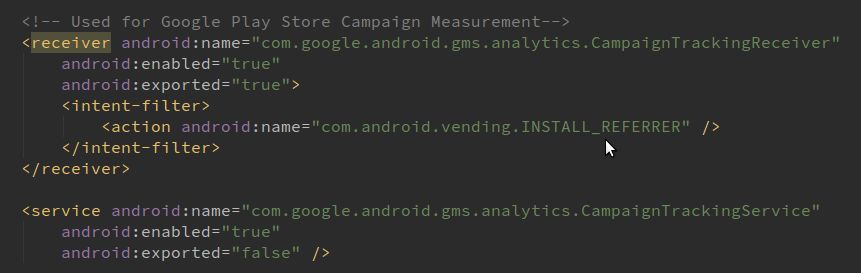
  6. Also Add the Install Referrer Receiver in AndroidManifest.xml to track Campaign Data.Google Tag Manager for Android and iOS devices
  7. Now, Create a Trigger with the following configuration in Google Tag Manager Container.GTM for android
  8. Create a DataLayer Variable to fetch the value of screenName from the datalayer.GTM for iOS devices
  9. Create a Tag to fire the Screen View from the app.tag manager
  10. Add Google Tag Manager’s Default Container to your Project.
    • Within Google Tag Manager interface select VERSIONS -> ACTION -> DOWNLOAD this will download the container binary file.
      google analytics
    • Within your Android project, create a raw folder in project-root / res path.
    • Copy the downloaded binary file to the path project-root / res / raw with changing the filename to gtm_defaultcontainer_gtm_id.Google tag manager

Now, Let’s get started with initializing Tag Manager Instance and using DataLayer

  1. Create a ContainerHolderSingleton Class.
    ContainerHolderSingleton class is used to have access to a single instance of TagManager Object at a time.GTM
  2. Create a class ContainerLoadedCallback Class.
    ContainerLoadedCallback class is used to load the fresh GTM Container when it is availableGoogle Tag Manager for Android and iOS devices
  3. Initialize Tag Manager in Application Class of your app (Recommended) or First Screen of the App (i.e. Splash Screen or Main Screen)
  4. Load the latest container by specifying the CONTAINER_ID
  5. Use ResultCallback to return the ContainerHolder once it has finished loading or has timed out for fetching the latest container
    GTM for android
  6. After Initializing GTM well, it’s time to add the tracking code, which is implemented using the DataLayer Object.
    DataLayer provides a layer of persistence that you use to store data in key-value pairs form and then send it to Google Analytics.
    Create one method in general until class to push the openScreen event and start tracking the screen views from your app. You can call this method in onCreate()/onStart Method of your app activities with the screenName that you want to send.
    GTM for iOS devices

With the above steps performed we have successfully implemented the Google Tag Manager in Android. To know that your implementation is working well, verify your data in Google Analytics Report.

Also please note that to track any kind of action through GTM, an event must be pushed in dataLayer and for the very same event, a Tag must be configured in GTM Interface.

So, that’s it. This is how you can integrate Google Tag Manager version 4 container in your Android app. Recently, Google rolled out version 5 container for the app

Now, the question is which version should you use in your app. Stay tuned for the benefits of the version 5 container over the version 4 container and steps to integrate it.
Till then HAPPY TAGGING!

Google Analytics-JS Error Tracking Using Google GTM Events

javascript error tracking

javascript error tracking

What? How? Why? Was that your reaction when you read the title of my blog? Well, as a developer, it is important for us that the code we have written, should not break or should not be blocked by other scripts. Users are very creative these days - if at all tester misses some use cases, users will encounter some of those for sure. So, you need to make sure that your website is working well with every release and every publish of GTM.

It gives me immense pleasure to introduce Google Tag Manager’s unsung hero “Javascript error tracking feature”. GTM has this beautiful trigger named JavaScript Error ( also known as gtm.pageError dataLayer event ) enabled when any JS error occurs on the page.

Google Tag ManagerImage: javascript inbuilt variable in GTM

And to complement that trigger, it has built-in variables like

  • Error Message ( also known as gtm.errorLineNumber dataLayer variable : It will give value which represents the error description in string format
  • Error Url ( also known as gtm.errorMessage dataLayer variable ): It will give third party js file URL or any file URL which from which error occurred.
  • Error Line ( also known as gtm.errorUrl dataLayer variable ): This is an integer value that shows which line number has caused an error.

When javascript error occurs on site, GTM pushes a dataLayer which contains above-mentioned information with it and voila, you can now track errors in Analytics. Resolve those errors to improve the website performance.

Javascript Error Tracking

GIF: js error tag configuration

Precautions while implementing JavaScript Error Tracking:
  • Create a separate view to record these errors. Exclude them from Master view and the reason behind creating a new view for such tracking is that it will affect the actual user data by adding javascript error events in user’s session.
  • You can also restrict the JavaScript Error tracking to fire on specific conditions only
Usage of JavaScript Error Tracking:
  • Set alerts if your error rate reaches tocertainlevel. This will enable you tominimisethe risk in case of any important functionality on your website breaks down or gets affected via a third party script.Google Analytics Javascript error tracking

Image: Custom Alert for javascript error in google analytics

  • Know which third party scripts are causing issues. Fix them. Below screenshot shows which files are causing these errors.dataLayer variable in GTM

    Image: Custom Alert for javascript error in google analytics

JavaScript Error tracking provides a whole new avenue in which we can use data in Google Analytics. This data will help you identify glitches on the website and you will get a notification over mail or on phone based on the configuration set in custom alerts. The faster you act in such cases, the less damage takes place. Most importantly, improve your website performance by resolving the errors which block important scripts execution.

So, start tracking errors on website and get to know the culprits who are affecting your website performance and most importantly, act faster in disaster cases. Feel free to reach out to us in case of any query or leave a comment in the section below. We also provide Google Tag Manager & Google Analytics

Bot Icon
Bot Icon

Tatvic Bot

Explore About Tatvic and Services